Once your installation pro tells you that your Spotlight Pro is up and running, then you're going to flip on the app. On the homescreen, the camera that your Spotlight Pro is attached to will appear blurry and say, “Get Started.” Tap on it. Then the app will guide you through setting up the camera and spotlight so they work best for your home’s needs.
First, it'll tell you how to set up a detection zone. Set up the zone by dragging the red dots to create a box that will be your detection zone. Once that’s set up, your camera will only detect what's inside the zone. That means fewer false alarms, so make sure you set it up exactly how you want it.
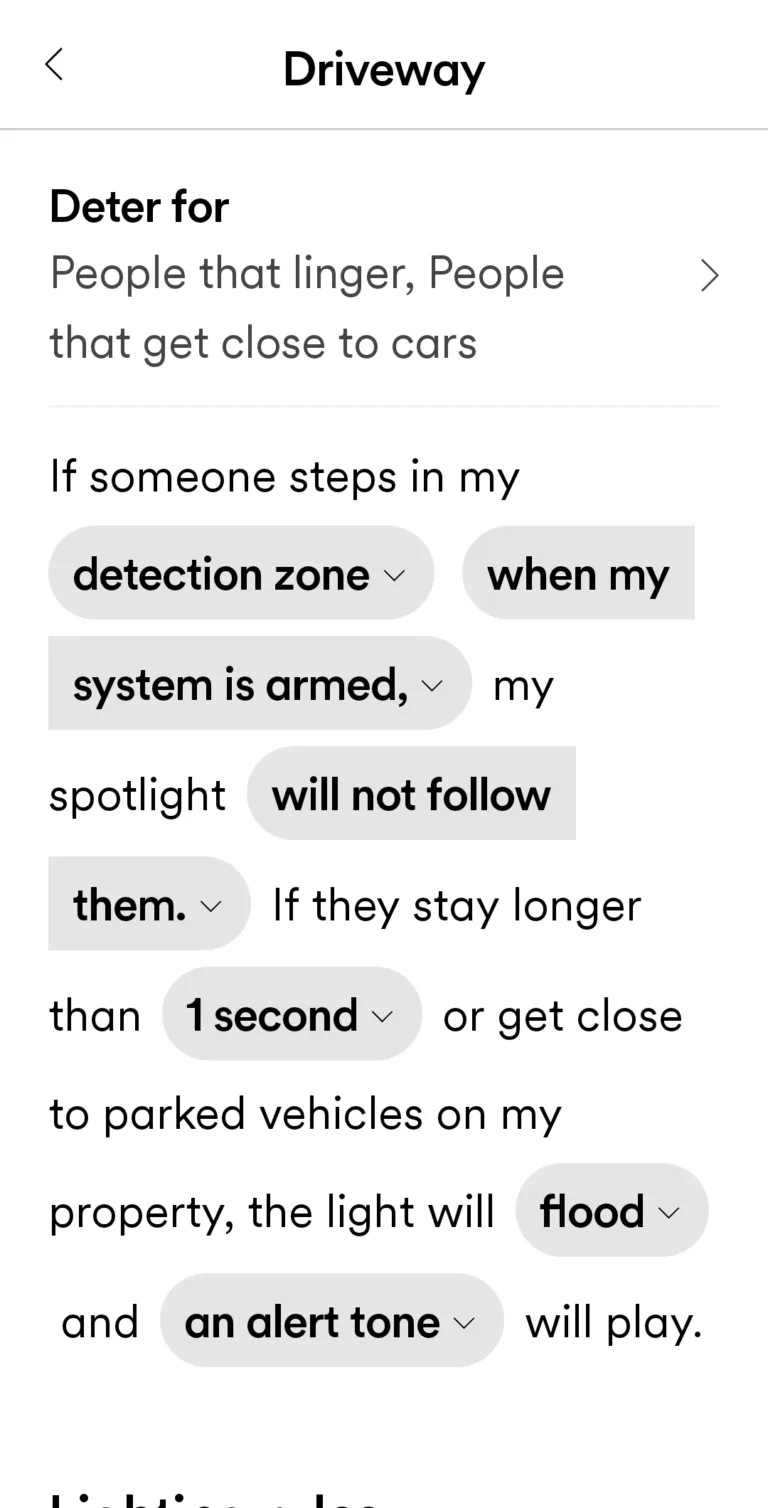
You're going to name where your camera is, then pick who you want to deter. You can choose people who linger, people who get close to your car, or both. I picked both, because the more protection the better, right?
Then you're going to set up every little particular thing about your camera so it works just the way you want it to. Click on each of the little drop-down menus to see what your options are and then pick which ones you like. I had the most fun picking the tone the camera will make when it detects suspicious behavior. I picked the whistle tone. It’s shrill and gets attention.
Eventually, you’ll come to an option that asks if you want to make your camera smarter. Now, some people will see that it says it’s training the camera’s AI and go, “Eww.”
Hold on, though.
The Vivint installation pro told me that this option trains the AI so it knows your face and won't go off every time it sees you. It'll also memorize your friends/frequent visitors, your pets, and other things that usually happen around your house. This is so the camera only alerts when it recognizes unusual things and people. That means fewer false alarms and a happier experience for you. I recommend tapping the “Yes” button when you encounter this option.



 4 min read
 Edited By