Cathy has personally (and rigorously) tested nearly a dozen kids smartwatches. Her methodical approach makes it easy to compare devices and find the best solution for your family. Cathy has also completed several kids safety certifications and is a Safe Sleep Ambassador.
If you buy a kids smartwatch, your child will outgrow it in a few years. With an Apple Watch, you can gradually adjust parental control settings until they're no longer needed. But is an Apple Watch really safe for kids?
To answer that question, I bought a refurbished Apple Watch SE and put it through my usual kids smartwatch tests. In this review, I'll cover all the things I learned along the way and share a complete walkthrough for setting up parental controls.
Pros
Small and comfortable
Can be an affordable hand-me-down
Tons of apps and tools
Parental controls can be relaxed as your child matures
Talk to text
Two modes for restricting usage
Cons
No video calling
New models are expensive
Time-consuming and detailed setup
No location history log or low battery alerts
GPS isn't very precise
Kids can leave Family Sharing at age 13
Kids can easily get out of schooltime mode
Video: Are Apple Watches good for kids? An Apple SE Watch review
Play Video
Subscribe to our YouTube channel to learn how to protect your home, loved ones, and belongings.
First, make sure you get the right Apple Watch
If you want to use an Apple Watch as a kids smartwatch, you have to shop carefully. Not all Apple Watches can be set up for a child. You must have a GPS + Cellular model. I learned this the hard way when I bought a GPS-only model and couldn't finish setup.
All Apple Watches come in a GPS model and a GPS + Cellular model. So just double-check you're buying the cellular option.
You also need to check carrier compatibility.
With kids smartwatches, you usually buy a cellular plan through the same company that makes the watch. In some cases, you buy and install a SIM card from the carrier of your choice.
With the Apple Watch, you have to use the same carrier that provides cellular service to your iPhone. There's no way to switch. And not all carriers support all iPhone models.
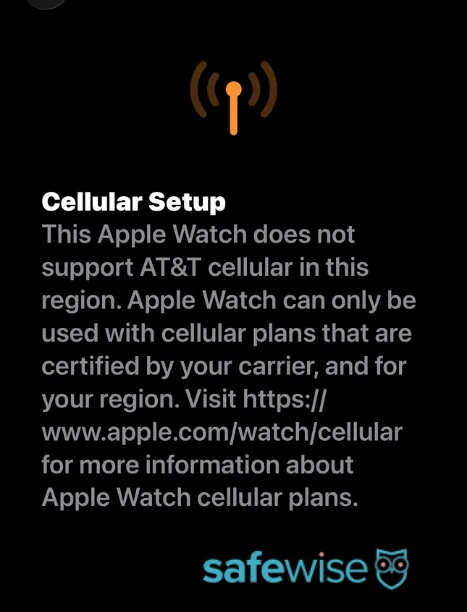
When I tried to set up cellular on the Apple Watch SE, it said AT&T didn't support this particular watch. Huh? AT&T is a huge provider, how does it not support an Apple Watch?
Share:
Screenshot: SafeWise
Now that you know this can be an issue, be sure to check compatibility on the Apple website. Models that are currently supported by 17 U.S. cell carriers include:
Apple Watch Series 11
Apple Watch Series 10
Apple Watch Series 9
Apple Watch Series 8
Apple Watch SE 3
Apple Watch SE 2
Apple Watch Ultra 3
Apple Watch Ultra 2
Apple Watch Ultra
In my effort to get the most affordable option out there (a refurbished Apple Watch SE), I accidentally got one that wouldn't work.
Note that if you scroll down on that Apple page, there's a separate table called Apple Watch For Your Kids. It claims the SE and Series 4, Series 5, Series 6, and Series 7 are all compatible with AT&T. But because I know that's not true for the SE, I would be cautious about trusting the rest of that table.
This means you may not be able to pass your old Apple Watch on to your child. At least, not with any meaningful parental controls.
You may be able to find a compatible, refurbished, GPS + Cellular model for under $200 on a site like Amazon. But most options seem to run about $320 and up. That makes Apple Watch far more expensive than kids smartwatches. However, it may offer a longer lifespan since it's impossible for your child to grow out of it.
Parents, you need at least an iPhone 11 running iOS 26 to set up an Apple Watch.
My experience testing Apple Watch's parental controls
The carrier snafu made it a little tricky to test the Apple Watch's geofencing and GPS location accuracy. These features rely on cellular data to send alerts to the parent's phone. But, I was able to get some interesting insights while connected to WiFi, and I was even able to test audio quality by making WiFi calls on FaceTime. Here's what you need to know.
1. Setup is a bear
Don't try to rush through setting up Apple Watch parental controls. Important settings are scattered across several iPhone apps, and it's easy to miss something.
There are tons of things you can allow or block depending on your child's maturity or your parenting style. You need to dot your i's and cross your t's to make sure your child is safe but still able to get some use out of the watch.
If you're overwhelmed, scroll down and I'll walk you through the settings I recommend for the youngest of kiddos.
2. The nudity filter doesn't work (at least not the way you might expect)
Apple offers a nudity filter that can be toggled on and off. This only applies to photos or videos being sent to the child. It's called "Communication Safety" in the Screen Time settings.
You'd imagine that toggling this filter on means your child wouldn't be able to see any content flagged as possible nudity ... right?
Nope.
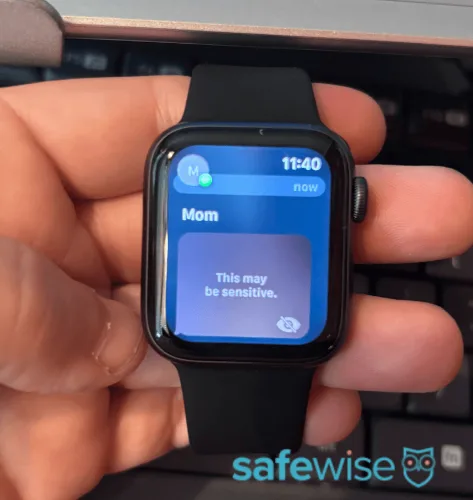
I took a close-up photo of my elbow, where the crease looks like a butt. It was enough to fool the filter (and maintain my dignity). So I got to see what the censor actually looks like.
On the watch, the photo was blurred and covered by text that said, "This may be sensitive." And then there was a symbol in the corner showing an eye with a line through it. I tapped that symbol on the Apple Watch, and a new screen appeared.
Share:
Image: Cathy H., SafeWise
It contained text clearly written for kids explaining that the image might show nudity. And then kids had the option to view the image anyway. Tapping that brought up a second screen that basically said, "Are you sure?" And by asking once again to see the photo, it was shown in its entirety.
According to the Apple website, children under 13 shouldn't be able to view sensitive content without inputting the Screen Time PIN. I was never prompted to enter a PIN even though my test profile is set to 7 years old.
But I feel like I should throw Apple a bone here for at least attempting to have a nudity filter. Many kids smartwatches don't have this feature. Apple's version is flawed, but it doesn't put your child at a greater risk compared with most other kids smartwatches. (Check out the Bark Watch if photo and video censoring is important to you.)
3. You have some control over email, but it's not clearly stated
You have to create an Apple account for your child when setting up their watch. An email address is required. If your child doesn't already have one, you can immediately create an iCloud email for them.
The frustrating thing is that you can't remove the Mail app from the watch. At first I thought this meant anyone could send or receive emails from that address, but it seems that contact restrictions for messaging and calling also apply to emailing.
When your child composes an email, they'll only be able to choose a recipient from their contacts list — the same list that you manage for them.
To test whether strangers can email a child's iCloud account, I used my secondary account (one not assigned to any contacts on the Apple Watch) to send an email. It never arrived.
Email is never mentioned in the parental control settings, so it would be easy to think your child could use it to talk to people they can't call or text. Fortunately, that's not the case.
4. GPS location could be more accurate
Admittedly, I had problems testing GPS location because I wasn't connected to cell towers. I couldn't get a real-time view of the watch's location.
However, I saw there was an option on the watch to "Send Location" via text message. I tapped that and nothing happened — at least not right away.
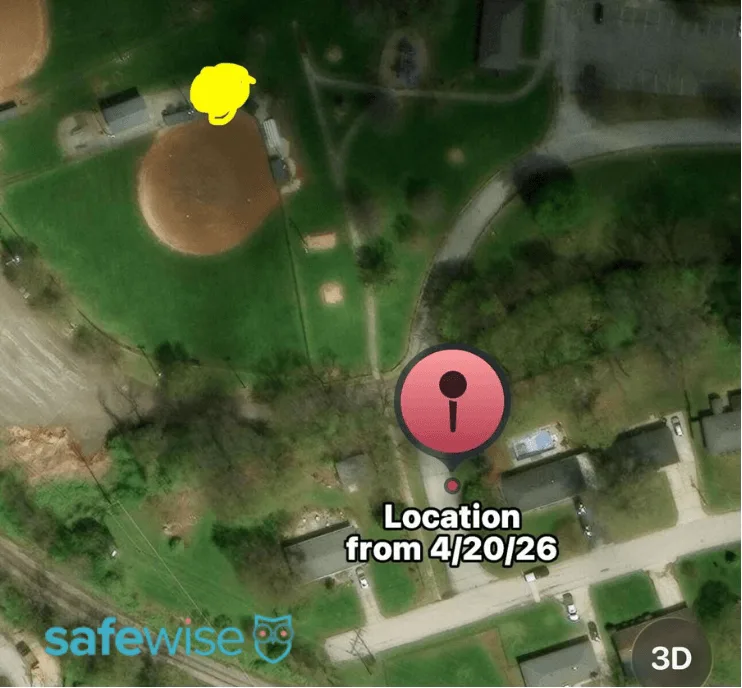
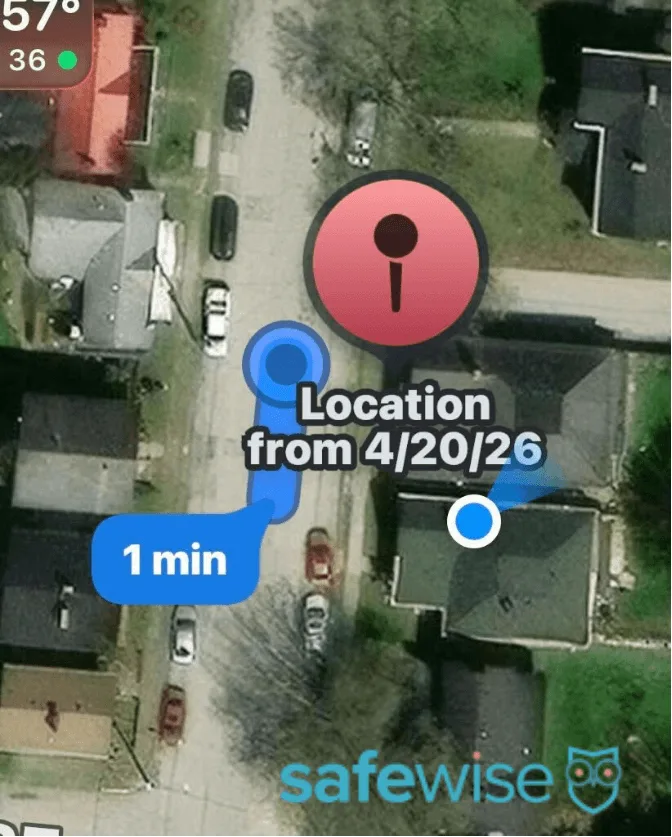
As soon as the watch reconnected to my home WiFi, it finished sending that location update. It showed the correct general area, but it was off by at least 100 feet. It looked like the watch was in a neighborhood when it was actually in a park.
I repeated this method two other times to complete my three usual GPS tests: one reading in an open field, one reading in a car parked under a tree, and one reading inside a house.
Compared to other kids smartwatches, the outdoor tests resulted in the least accurate GPS readings I've ever gotten during tests. The indoor reading was far more accurate but still wasn't spot-on. If you're looking for a tracker that will help you located a kid lost in a crowd, this isn't going to work. If you're looking for a tracker that gives you a general idea of where your child is, this may work fine.
Granted, I didbuy one of the older Apple Watches because I wanted to find an affordable option. Maybe the location tracking tech has improved since the original SE was launched. You may notice better location tracking with a newer Apple Watch.
Note that there's no location history log for Apple Watches.
Share:
The yellow squiggle shows the watch's real location. Image: SafeWise
5. Geofencing requires your child's permission
Geofencing works a little differently on an Apple Watch. You won't get geofencing alerts unless your child approves your request to do so.
Each geofence rule requires permission. If you set up a geofence for a new address, your child needs to accept the request again. The requests only come through when your child crosses the boundary.
It would be easy for a parent to get around this by simply crossing the geofence boundary with the watch and accepting the request themselves.
Geofences can be set to a minimum radius of 300 feet. As for how accurate they are, I wasn't able to test this because I needed cellular data to send instant notifications from the watch to my phone.
6. SOS button goes straight to 911
Pressing and holding the side button triggers a 911 call and sends alerts to emergency contacts. Your child has an option to confirm the emergency call or cancel.
Calling 911 for a non-emergency can potentially lead to criminal charges, fines, and jail time. If your child isn't mature enough to take this seriously, you can disable the SOS button.
The SOS buttons on kids smartwatches work differently. When the SOS button is activated, a kids smartwatch calls parents and/or multiple caregivers. Some also allow kids to call 911, but through a separate mechanism.
If you want your child to have a quick-dial button that calls you directly, consider a kids smartwatch instead of an Apple Watch.
7. Kids can exit schooltime mode
One thing that's neat about the Apple Watch is that you have two different options for limiting your child's use.
Schooltime only allows the child to make emergency calls.
Downtime lets you allow access to specific apps while restricting access to others.
Both modes can be set into custom schedules. Downtime is helpful for reducing overall screen time, while schooltime prevents distractions in the classroom. Most kids smartwatches only have the equivalent of schooltime, but then again, most don't have extra apps that would make downtime mode necessary.
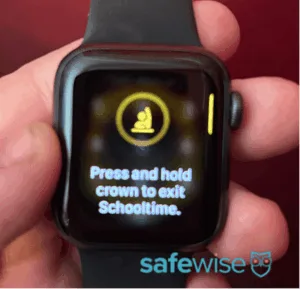
However, kids can get the watch out of schooltime mode. The watch will prompt them to press and hold the Digital Crown button to exit schooltime. It then warns them that parents can see their schooltime exits. Kids who choose to exit schooltime mode anyway can access any app they want.
Parents aren't notified of schooltime exits. You must visit the schooltime settings area of the Watch app to view the number and duration of exits.
Kids can ignore Schooltime by pressing and holding the digital crown. Image: Cathy H., SafeWise
My Apple Watch test results
Advertised battery life
Actual battery life
Battery alerts
Geofencing
GPS open field test
GPS outdoor obstacle test
GPS indoor test
Audio quality
24 hours
29 hours
None
(Unable to test)
Off by about 100 ft.
Off by about 100 ft.
Off by about 25 ft.
No static, easy volume control, option to mute mic,
What's missing from Apple Watch parental controls?
Apple Watches are missing a few popular communication and safety features that are found in many kids smartwatches. We've summarized them in the table below.
Not available in the Apple Watch
When is it useful?
Watches to consider instead
Video calling
Connecting with kids in a more personal way, confirming their location/safety
How does the Apple Watch compare to kids smartwatches?
Apple Watch doesn't top my list of the best smartwatches for kids. In fact, I would put it toward the bottom.
Here's the bad news:
It lets kids completely exit school mode.
The nudity filter, while a nice feature in theory, is completely useless since kids can choose to unblock the photos.
Kids smartwatches offer more accurate GPS tracking.
It requires the child's permission before you can receive geofencing alerts, which complicates setup for parents.
It has a shorter battery life than most kids smartwatches.
There's no SOS function for quickly reaching a parent or guardian without also contacting 911.
There are a few advantages:
An Apple Watch can grow with your child, making it a long-term investment.
It's small and lightweight.
It has more health tracking features than many kids smartwatches.
For parents interested in providing their child with on-the-go tools, games, or music streaming, this puts the full scope of the Apple App Store at your fingertips.
Prices as of post date. Offers and availability may vary by location and are subject to change. Read full Amazon disclaimer. †Paid for monthly over 24 months. This monthly cost covers the device only. A Bark service plan is required to activate your Bark Watch. *No contract required. $30 activation. New lines only.
Setting up Apple Watch for kids — a complete walkthrough
First, you'll need to pair a reset Apple Watch with your iPhone. Make sure the Apple Watch is fully charged and turned on. Bring it close to your iPhone. You should automatically see a notification on your iPhone asking if you want to add a watch. Confirm to get started.
Follow the prompts on your phone. You'll have a chance to adjust some settings during setup, but not all.
The most important thing you'll do at this stage is set up your Screen Time password. This four-digit PIN provides access to certain parental controls in the Screen Time settings menu. Make sure your child doesn't see you set that up. You can change it in the future if needed.
Once the watch is up and running, it's time to review all the settings (and there are a lot!) to make sure it meets your expectations from a safety standpoint.
Here's how I would lock down an Apple Watch for a young child. You might choose different settings based on your child's age or your personal preferences, and that's okay.
1. Screen Time settings
On your iPhone, go to Settings > Family. Then select your child's account.
Go to the Screen Time menu.
Under the Limit Usage header, you can ...
Click Downtime to:
Create a custom schedule for when you don't want your child playing around on the watch.
Select the apps you don't mind your child accessing during downtime.
Ignore the Screen Distance option, as it doesn't work with Apple Watch.
Under the Communication header, you can ...
Click Communication Limits to:
Limit who your child can contact outside of downtime. I recommend choosing Contacts Only.
Limit who your child can contact during downtime. I recommend choosing Specific Contacts. You will need to select each contact after setting them up in the next step.
Manage your child's contacts. Make sure this is toggled on.
Add or delete contacts for your child. Make sure you add phone numbers and email addresses if you're okay with someone being an email contact too.
Turn "allow contact editing" off to close a potential loophole.
Click Communication Safety to:
Turn on the nudity filter.
Under the Restrictions header, you can:
Click Content & Privacy Restrictions to:
Turn on content & privacy restrictions in general.
Manage iTunes settings. I recommend selecting Don't Allow for installing and deleting apps and for making in-app purchases. I also recommend choosing Always Require under the password option.
Manage apps. There are default apps you'll definitely want to turn off. I recommend removing Safari unless your child is allowed some internet access. Also use caution with SharePlay, AirDrop, iTunes Store, and Podcasts (I'd turn all of them off until they're needed).
Set restrictions for allowed media content. This lets you block explicit music and books, for example, and to set age limits for other media. When in doubt, restrict it.
Restrict access to "adult" websites (it's unclear what type of content falls into that category, so I would assume you probably have a more strict definition than Apple), or only allow access to a specific list of websites.
Control how your child can interact with other people in games. I would change everything in this section to Don't Allow.
Restrict use of Apple Intelligence and Siri. I would select everything to Don't Allow unless this creates an accessibility issue.
Set Share My Location to Don't Allow. This is so apps can't collect location data. You'll manage other location sharing settings in another area.
Manage whether your child is able to change certain settings from their device. I would select Don't Allow for everything.
Click Manage Screen Time to:
Change the Screen Time password.
2. Money and subscription settings
On your iPhone, go to Settings > Family. Then select your child's account.
Click Ask to Buy to:
Prevent your child from buying anything from the App Store, iTunes Store, or Apple Books without your permission. Even if you've already restricted access to these apps, this setting is an important fail-safe.
Click Apple Cash to:
Set up Apple Cash for your child. This could be useful for more independent kids who want to buy something at a brick-and-mortar store.
Click Subscriptions to:
Share subscriptions (purchased with Apple Cash) with your child. This can be helpful for connecting certain apps across devices.
Click Purchases to:
Share books, music, and other one-time purchases with your child's Apple Watch.
3. Location (Find My) settings
On your iPhone, go to Settings > Family. Then select your child's account.
Click Location Sharing to:
Block your child from making changes to their location sharing settings.
Conveniently access the Find My app.
You can also access the Find My app from your phone's home screen or by searching for it in your app library.
On the Find My app:
Swipe up from the bottom.
Select the "People" tab on the far left.
Choose your child's profile.
This allows you to see your child's location on a map.
To set up geofencing alerts, tap Notifications. You may need to enable push notifications for the Find My app before this will work.
Click Add > Notify Me.
Choose whether you would like to get a notification when your child enters or leaves a certain boundary. You have to set up separate notifications for each one, even if they are for the same address.
You can also get a notification when your child is not at a specific address during a particular time.
The location options default to your iPhone's current location and the Apple Watch's current location. Tap either of these or enter a new address.
Click and drag the edge of the circle to set a boundary, or select Small, Medium, or Large. The minimum radius is 300 feet.
Tap the checkmark in the upper right corner to save.
4. Watch app settings
Now, navigate to the Watch app, select your child's device, and tap the check mark in the upper right corner.
There are just a few settings here that have to do with safety.
Click Emergency SOS to:
Enable or disable the SOS button. Remember, it goes directly to 911.
Manage fall detection. I recommend turning fall detection off for most children because their rough and tumble lives tend to create false alarms.
Click Schooltime to:
Turn Schooltime settings on and off (useful for vacations).
Create or edit Schooltime schedules that prevent your child from using their watch for anything other than emergency calls.
Click Screen Time to:
Conveniently open Screen Time settings.
5. Other settings
You can share calendars, reminders, and other tools with your child's Apple Watch by adjusting the settings in those apps. Note that you need to allow the watch to access an internet browser in order to set up Reminders.
Apple Watch FAQ
Your child doesn't need their own phone to use an Apple Watch. A parent or guardian must have an iPhone 11 or newer running iOS 26.
Yes, kids can text on an Apple Watch. You can create a list of responses for them to choose from, allow voice dictation, or let them use a full text keyboard (depending on watch model).
How I reviewed the Apple Watch for kids
Image: Cathy H., SafeWise.
I reviewed Apple Watch parental controls through hands-on testing with an Apple Watch SE. I followed the same methodology I use with all kids smartwatches, which helps me make fair and accurate comparisons.
I tested:
GPS location accuracy
School mode effectiveness
Content monitoring responsiveness
Advertised vs. real-world battery life
Setup difficulty
I then compared the Apple Watch's performance and specs to other kids smartwatches. SafeWise's surveys also inform my reviews by helping me understand which features are most important to parents.
Visit the SafeWise methodology page to learn more about our team's review process.
Final word
If you have an old Apple Watch and are thinking about passing it on to your kid, I think it's fine to give it a try.
A kids smartwatch may be a better choice if you have specific safety needs in mind that Apple Watch doesn't cater to, like a parent-first SOS button or a location history map.
I can also see an Apple Watch not working for kids who like to look for loopholes or who may get hold of your iPhone and Screen Time password. They could unlock a lot of stuff before you know it.
*Product prices and availability are accurate as of post date and are subject to change. Any price and availability information displayed on Amazon at the time of purchase will apply to the purchase of this product. Safewise.com utilizes paid Amazon links.
Certain content that appears on this site comes from Amazon. This content is provided “as is” and is subject to change or removal at any time.
With over 12 years of experience as a content writer, Cathy has a knack for untangling complex information. Her natural curiosity and ability to empathize help Cathy offer insightful, friendly advice. She believes in empowering readers who may not feel confident about a purchase, project, or topic.
Cathy earned her Bachelor of Arts degree in English from Indiana University Southeast and began her professional writing career immediately after graduation. She has focused on family safety, home guides, and health content since 2021 and earned a gerontology certificate to learn more about the medical side of senior safety. Over the years, Cathy has contributed to sites like SELF.com, SingleCare, My Health Teams, Safety.com, Reviews.com, Hunker, Popular Living, and Thumbtack.







 12 min read









 Your Privacy Choices
