With 25+ years in tech journalism, Alina blends safety expertise with her passion for simplifying technology. Alina has tested hundreds of safety and security devices, is trained as a first responder, and has worked as a volunteer firefighter.
The Vivintmobile app for iPhone, iPad, Apple Watch, and Android devices serves as your direct line to the Vivint smart home security system. But if you think the Vivint app is just a remote control, think again. This app lets you create custom notifications and automations and offers a full equipment activity log.
I have a Vivint system, and I'll show you how to add users, create custom rules, set up notifications, monitor activity around your home, and much more through the Vivint app.
People with busy households who want to monitor or control who comes and goes
People with busy schedules who value the versatility and convenience of mobile controls
People wanting to deter porch pirates and other prowlers
People who wonder, “Did I lock that door?” and want to confirm or handle the situation without driving back home
People with limited mobility looking to experience greater independence
People who don’t feel comfortable hiring a house sitter while they’re on vacation
How do I download the Vivint app?
Download the Vivint app by visiting the Google Play store (for Android users) or the Apple App Store (for iPhone, iPad, and Apple Watch users) through your mobile device. There’s no additional cost for downloading the app.
Click “Install” or “Get” to start the download process. You may need to authenticate the download by typing in your Google Play or Apple ID and password.
Once the download’s done, open the app by tapping the icon on your device’s home screen. You’ll then be prompted to log in.
Setting up your Vivint app login
Every Vivint customer receives professional installation for a one-time fee of $199 if you don't have a contract or free if you do.The Vivint installer will help you set up a primary user account on the Vivint control panel. From there, your installer will send a “remote access invite” to your email address. My installer made the process really simple.
Open the email and click the link to set your app password. Then, access the Vivint app and use your email address and newly created password to log in.
Be consistent
When setting up your app login, Vivint recommends using the same email address provided during the purchase process.
How do I set up the Vivint smart home app?
Learn how to pair new equipment to your Vivint smart home app, sync the app with smart home hubs, and add custom features like rules, notifications, and user permissions.
How do I connect my Vivint equipment to the app?
Adding devices to your Vivint app is simple:
Disarm your system.
Plug in the camera and wait a couple of minutes for it to turn on.
On your app, tap the menu.
Tap +Add a device.
Pick the device you want to add.
From there, the app will guide you through the process.
How to connect the Vivint app to smart home hubs
The Vivint app used to be compatible with Google Assistant and Amazon Alexa. They ended compatibility with Alexa in November 2025. You can still connect your app to Google Home, though. Here's how:
Open the Google Home app.
Tap the home icon.
Tap the + icon.
Select Set up device.
Choose Works with Google.
Select the magnifying glass icon and search for Vivint.
Tap on the Vivint icon.
Tap Allow.
Sign into your Vivint account.
Add your smart home devices.
Choose the room or add a custom room.
Say, "Hey Google, sync with Vivint."
Now you're ready to use voice commands to use your Vivint system.
Note: Vivint does not currently work with Apple HomeKit.
You can give family members and guests access to your Vivint system by adding them to your account.
Tap the menu.
Choose Users.
Tap Add new user.
Enter the user’s name and create a 4-digit pin that allows them to unlock doors and disarm the security system.
Toggle Allow mobile access and enter the user’s email address and phone number to set up their login.
Toggle Admin to give this user full control over the system.
After creating a user, tap their icon from the main User screen to adjust device permissions.
Careful!
You cannot adjust device permissions for any user given admin status.
Adding custom rules
Custom rules allow you to automate your smart home security system. You can tell the equipment to respond in a specific way when certain conditions are met. For example, consider automating your nightly lock-up routine by having all exterior doors lock at a specific time.
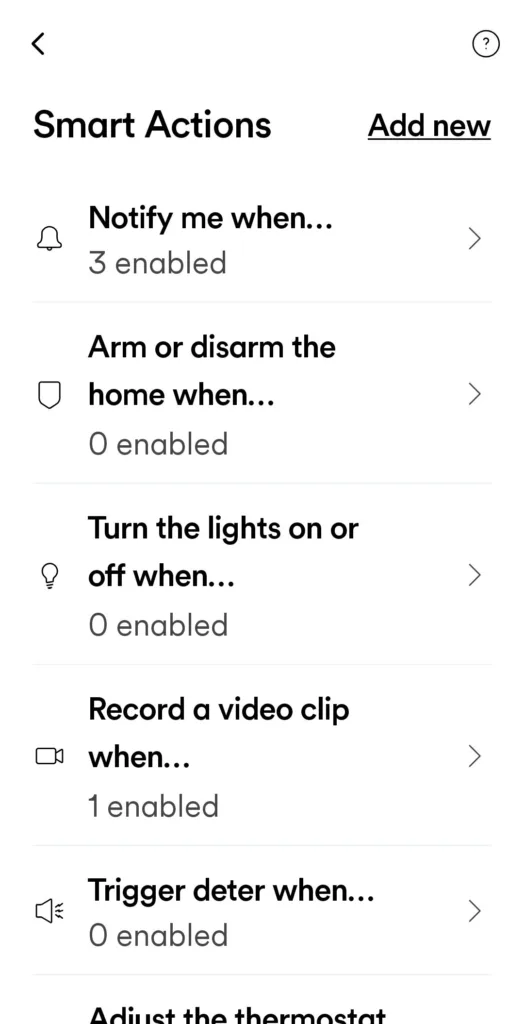
Rules can often be accessed and edited from multiple screens on the app. The easiest way to access all rules is to tap the three-bar icon in the upper-left corner of the security screen. Then, tap Smart Actions.
The Vivint security app comes pre-programmed with a few rules. Review them to make sure they align with your goals and expectations. Toggle any unnecessary rules into the “off” position.
To add a custom rule, tap the Add new option in the upper right corner. Follow the on-screen prompts to create a rule that accomplishes a desired task.
Sample home security automations
Decide what you want to happen:
Disarm my system
Unlock my doors
Lock my doors
Set the system to Armed Away
Turn off outlets
Record video clip
Turn on lights
Enable or disable camera privacy
Then choose what triggers that action:
At a specific time of day
When an alarm goes off
When a fire alarm goes off
When the system is armed or disarmed
When the door is locked or unlocked
When motion is detected
Images: Alina Sandor, SafeWise
These lists are just examples. The more Vivint equipment you have, the more options you'll see.
A completed custom action might be "Unlock all doors when the fire alarm goes off," or "Turn off hallway light at 11 p.m."
Adding custom notifcations
Want to receive push notifications on your phone when a specific event occurs?
Tap the menu.
Tap Smart Actions.
Choose Notify me when...
Tap Add new notification, or toggle existing notification types on or off.
Creating Shortcuts
The latest version of the Vivint app lets you bundle automations into "Shortcuts." Instead of setting your system to Home or Away, you can now set it to Arriving, Leaving, Bedtime, Kids Home, Work from Home, or any other scenario that requires multiple automations.
For example, you might set up a bedtime shortcut to lock all the doors, shut off all the interior lights, turn on outdoor lights, arm the security system, turn off music, and adjust the thermostat with one push of a button.
The Shortcuts appear on the app's home page for easy access.
Here's how you can create a shortcut:
On the Vivint app home screen, tap Shortcuts (you may need to scroll a bit, I did).
Tap the plus sign (+) or Add a new shortcut.
Name the shortcut.
Add actions the same way you add custom rules.
Tap Create when finished.
Navigating and using the Vivint app
Just how easy is it to use the Vivint app? We’ll take you on a tour to show you how to make the most of it.
Security screen (HomeView)
Image: Alina Bradford, SafeWise
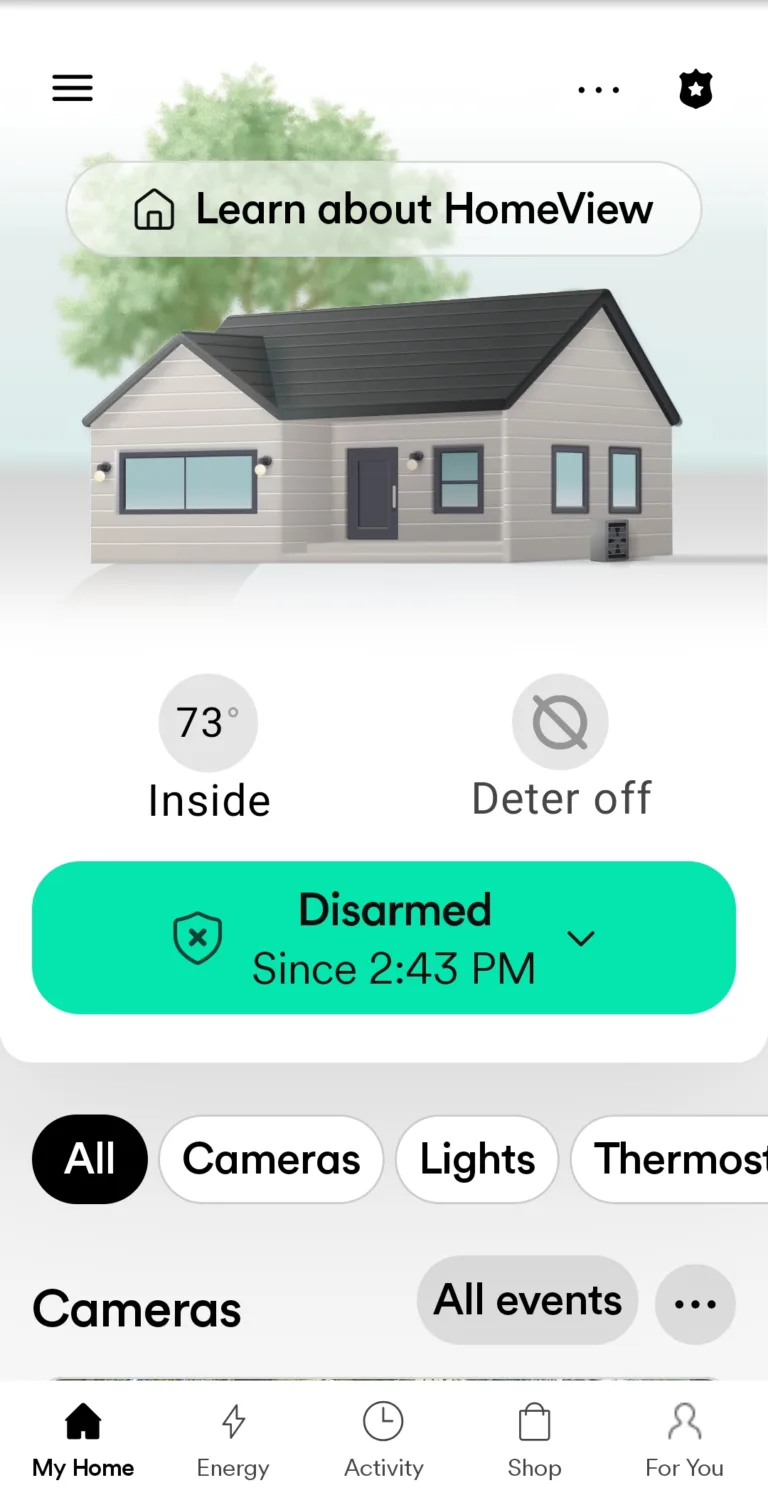
From the security screen (which doubles as the home screen, also called HomeView), you can arm and disarm the entire system, control cameras and and control smart door locks, thermostats, or garage door controllers, and more. You can return to this screen at any time by clicking the Home icon in the bottom left corner.
To arm the entire system:
Tap the green box below the image of your home.
Choose Armed Away or Armed Stay.
To disarm the entire Vivint system:
Tap the green box below your home icon.
Tap Disarm.
To sound the alarm:
Tap the shield icon in the upper right corner.
Tap and hold the option you want from the list for 3 seconds. The system will sound the alarm, Vivint will call you, and the authorities will be sent to your home.
Thermostat control screen
Image: Alina Bradford, SafeWise
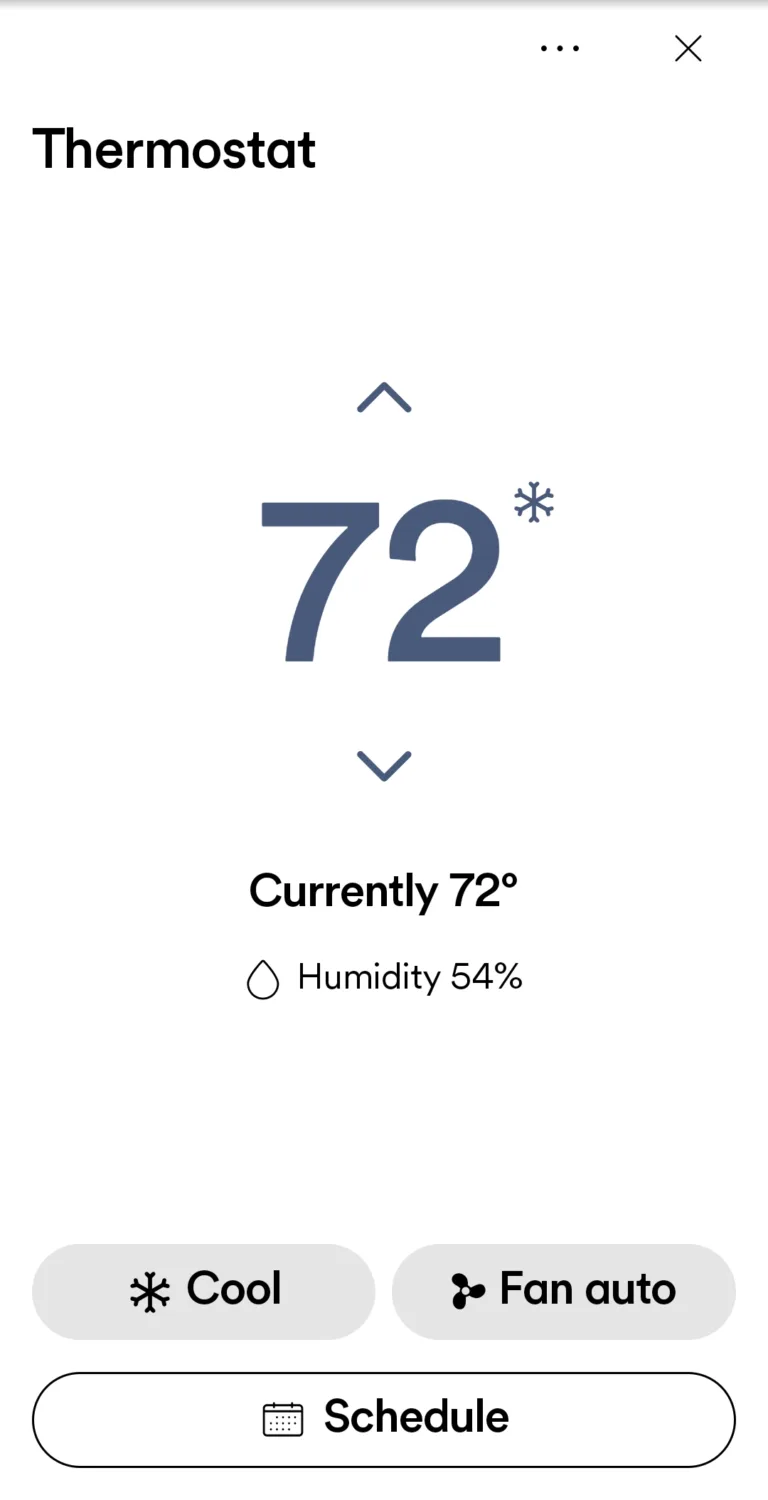
You can see the Vivint Smart Thermostat from the HomeView screen. You can tap on it to find more options. Or you can tap the Thermostat icon in the menu under the arm/disarm box.
The thermostat control screen features thermostat controls. If you have more than one thermostat installed, tap the name of the thermostat at the very top of the screen. Then, choose which thermostat you’d like to adjust.
To change the mode:
Tap the thermostat.
Tap Heat/Cool in the bottom left corner.
Select the desired mode from the list.
To change the temperature:
Make sure the desired mode is selected.
If in Heat/Cool mode, tap the up or down buttons to adjust.
To change the fan settings:
Tap the Fan in the lower-right corner.
Select the desired setting from the list.
To select a program:
Tap the house icon in the upper right corner.
Select the desired program icon: home, sleep, away, vacation.
To edit the settings:
Tap the ... icon in the upper right corner.
Select the condition you want to edit.
To create a heating and cooling schedule:
Tap Schedule at the bottom of the screen.
Toggle Schedule on.
Adjust the times and temperatures.
Tap Save changes.
Camera access screen
You can see the camera footage from the HomeView screen. You can tap on each camera to find more camera options. Or you can tap the Camera icon in the menu under the arm/disarm box.
Once you tap on the camera you want to look at, the view defaults to live footage. You can tap the Talk icon to talk to someone via the camera, and press the Photo icon to take a picture of what's happening in the live video. Tap the bottom of the screen to see recorded events.
To change your camera settings, go back to the home screen and scroll to the cameras section. Tap the ... icon. From there, you have access to all of your camera's settings.
Additional device access
If you scroll down on the HomeView screen, you'll see your other devices. That can be controlled. Passive devices, like sensors, won't show up here.
Menu icon
The security screen doubles as a home screen. From the security screen, tap on the three lines in the upper left corner to display a menu with the following options:
Create Smart Actions (e.g., notifications and rules)
Add new users and devices
Device settings
Solar access
Billing
Profile information
Appearance
Home details
Refer a friend
Support
Log out
Vivint App FAQ
Not anymore. Right now, Vivint only allows customers to access billing and account information online. Equipment must be controlled through the Vivint app or the Smart Hub.
Alina is a safety and security expert with over 25 years of experience. She has contributed her insights to CNET, CBS, Digital Trends, MTV, Top Ten Reviews, and many others. After testing thousands of devices, apps, services, and more, her goal is to make safety and security gadgets less mystifying one article at a time. In the early 2000s, Alina worked as a volunteer firefighter, earning her first responder certification and paving the way to her current career. Plus, she has tested hundreds of pieces of security and safety equipment over the years. Places published: CBS, MTV, CVS, Rachael Ray, eBay, Reader’s Digest, ConsumerAffairs, and more. Certifications: Fire Service Training, Oklahoma State University. Awards: Received the Experience Leader certificate from Authority, putting her “in the top 25% among the thousands of professional content creators analyzed by Authory for the Fall 2023 audit.”
You can view more of Alina's work at alinabradford.com.



 7 min read
 Reviewed By






 Your Privacy Choices
